Is your Samsung phone running painfully slow? You’re definitely not alone. Thousands of Samsung users in the USA face frustrating lag, frozen apps, and sluggish performance every single day. Whether you own a Galaxy S25, A54, or any other Samsung model running Android 14 or One UI 6, this comprehensive guide will help you fix that annoying slowdown without needing any technical expertise. I’ll walk you through 9 proven methods to make your Samsung phone lightning-fast again—from simple restarts to advanced optimization tricks that even Samsung technicians use. These solutions work for all Samsung Galaxy models and take just minutes to implement. Let’s transform your sluggish phone into a smooth, responsive device you’ll actually enjoy using again.
Why Is Your Samsung Phone So Slow?
Before diving into solutions, understanding why your Samsung phone feels like it’s running through mud is crucial. Multiple factors contribute to performance degradation over time, and identifying the root cause helps you apply the most effective fix. Most slowdowns stem from software issues rather than hardware failures, which means you can resolve them without visiting a repair shop or buying a new device.
Too Many Background Apps
Background apps are silent performance killers on your Samsung phone. Every app running behind the scenes consumes precious RAM and processing power, even when you’re not actively using them. Social media apps like Facebook, Instagram, and TikTok are notorious for constantly refreshing content, checking notifications, and draining resources. You’ll notice symptoms like delayed app switching, stuttering animations, and excessive battery drain. Samsung phones with 4GB RAM or less are particularly vulnerable to background app overload.
Low Storage Space
Your Samsung phone needs breathing room to function properly. When storage drops below 20%, Android’s performance takes a massive hit because the system lacks space for temporary files and cache management. Warning signs include failed app updates, camera errors saying “insufficient storage,” and apps crashing randomly. Photos, videos, downloaded files, and app data accumulate faster than you realize, especially with modern cameras capturing massive 50MP images and 4K videos.
Outdated Software
Running old software versions is like driving a car that desperately needs an oil change. Samsung and Google regularly release updates containing critical performance optimizations, bug fixes, and security patches. Outdated phones suffer from memory leaks, incompatible apps, and unpatched vulnerabilities that slow everything down. If you’re still on Android 12 or One UI 4, you’re missing significant speed improvements built into newer versions.
Cache Buildup
Cache files are temporary data that apps store to load faster, but ironically, excessive cache causes severe slowdowns over time. These files accumulate like digital dust bunnies, clogging your phone’s storage and causing apps to malfunction. You’ll experience longer app launch times, random freezes, and website loading errors. Samsung Internet, Chrome, Facebook, and streaming apps generate the most cache buildup.
Old Battery Health
A degraded battery doesn’t just drain quickly it directly impacts your phone’s speed. Samsung phones automatically throttle processor performance when battery health drops below 80% to prevent unexpected shutdowns. If your phone is 2-3 years old and suddenly feels sluggish, especially when battery percentage is low, deteriorated battery health is likely the culprit. You’ll notice performance drops particularly below 20% battery.
How to Speed Up a Slow Samsung Phone (Step-by-Step)
Now let’s tackle the actual fixes. These nine methods are arranged from quickest to most comprehensive, so you can start with simple solutions and progress to deeper optimizations if needed.
Step 1: Restart Your Samsung Phone (Quick Fix)
Restarting your Samsung phone is the simplest yet most underrated performance booster available. It clears RAM, terminates misbehaving background processes, and refreshes system resources all within seconds. Think of it as giving your phone a quick power nap to recharge its energy.
Why restart works: Android keeps apps and services running in memory even after you close them. Over days of continuous use, these processes accumulate and create memory leaks that slow everything down. A restart wipes this digital slate clean.
How to restart properly:
- Press and hold the Power button and Volume Down button simultaneously for 3 seconds
- Tap Restart from the power menu
- Wait 30-45 seconds for your phone to fully reboot
- For frozen phones, force restart by holding Power + Volume Down for 10 seconds
Pro tip: Restart your Samsung phone at least once weekly for optimal performance. Enable “Auto Restart at Set Times” in Settings > Device Care > Auto optimization for automatic weekly reboots.
Step 2: Clear Cache Partition (Safe Method)
Clearing the cache partition removes system-level temporary files without deleting your personal data a powerful yet safe performance boost. This differs from clearing individual app cache because it targets Android system cache that regular settings can’t touch.
Difference between cache & data: Cache contains temporary files apps use to load faster, while data includes your login information, settings, and saved content. Clearing cache is completely safe; clearing data logs you out and resets app preferences.
Steps to clear cache partition:
| Step | Action | Details |
|---|---|---|
| 1 | Power off completely | Hold Power + Volume Down, tap Power Off |
| 2 | Enter Recovery Mode | Hold Volume Up + Power button until Samsung logo appears |
| 3 | Navigate using volume keys | Scroll to “Wipe cache partition” |
| 4 | Select with Power button | Confirm the action |
| 5 | Wait for completion | Takes 30-60 seconds |
| 6 | Reboot system now | Select first option to restart |
When to do this: Clear cache partition every 2-3 months or after major Android/One UI updates. It’s especially effective if your phone feels sluggish after updating software.
Step 3: Delete Unused Apps
Your Samsung phone came with dozens of pre-installed apps you’ll never use, plus apps you downloaded once and forgot about. Each unnecessary app occupies storage, runs background processes, and receives updates all draining performance unnecessarily.
How to identify and remove heavy apps:
- Open Settings > Apps
- Tap three-dot menu > Sort by size
- Review apps consuming 100MB+ storage
- Select apps you haven’t used in 30+ days
- Tap Uninstall (or Disable for system apps)
Apps commonly safe to remove:
- Duplicate browsers (if you use only Chrome)
- Games you’ve completed
- Shopping apps you rarely use
- Old social media apps
- Bloatware like Facebook (use browser version instead)
Storage review strategy: Check Settings > Storage > Apps to see which apps hog the most space. You’ll be shocked how much space Instagram, Snapchat, and Netflix consume with cached data.
Important: Can’t uninstall certain Samsung or carrier apps? Disable them instead—this prevents them from running and updating while freeing significant storage.
Step 4: Free Up Storage Space
Maintaining adequate free storage is absolutely critical for Samsung phone performance. Android needs at least 20-30% free space to manage temporary files, app cache, and system operations efficiently.
Comprehensive storage cleanup checklist:
Delete duplicate photos and videos:
- Use Samsung Gallery’s “Similar images” feature
- Review Screenshots folder (often overlooked)
- Remove blurry or accidental photos
- Upload to Google Photos, then delete local copies
Clear Downloads folder:
- Go to My Files > Downloads
- Delete old PDFs, documents, APK files
- Move important files to cloud storage
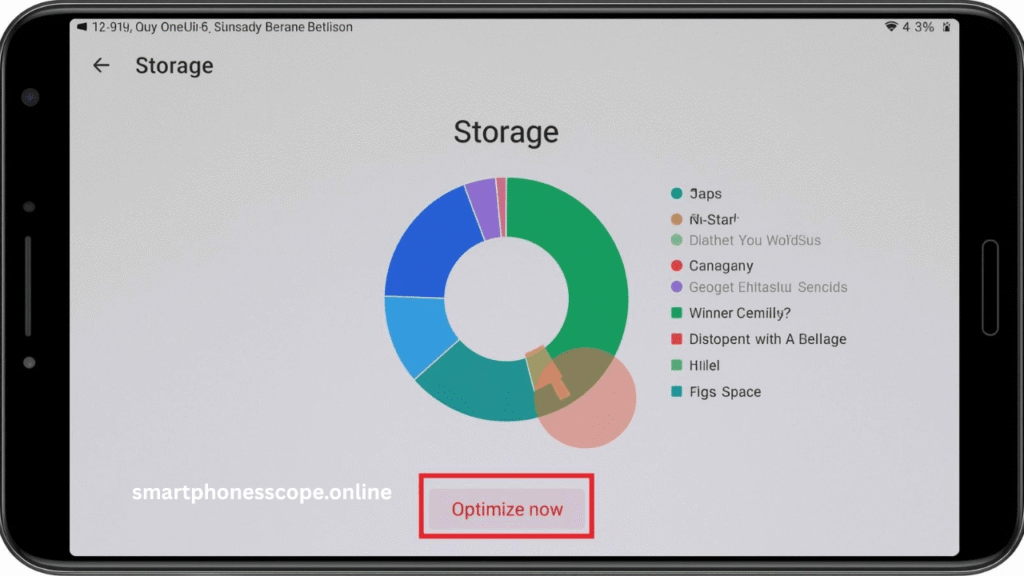
Use Samsung Storage Cleaner:
- Open Settings > Device Care > Storage
- Tap Optimize now
- Review Large files (over 100MB)
- Delete Duplicate files
- Empty Recycle bin (recently deleted items)
Additional storage-saving tips:
| Method | Potential Space Saved | Difficulty |
|---|---|---|
| Delete old WhatsApp media | 2-5 GB | Easy |
| Clear Spotify/YouTube offline downloads | 1-3 GB | Easy |
| Remove old email attachments | 500MB-2GB | Medium |
| Compress photos using Gallery | 1-2 GB | Easy |
| Move files to SD card (if available) | 5-10 GB | Easy |
Pro tip: Enable “Smart storage management” in Device Care to automatically remove backed-up photos and videos after 30 days.
Step 5: Reduce Animations (Hidden Speed Trick)
This secret developer setting makes your Samsung phone feel dramatically faster instantly, even though actual processing speed remains unchanged. Reduced animations create the perception of snappier performance a trick even tech reviewers use.
Enable Developer Options:
- Go to Settings > About phone
- Tap Software information
- Tap Build number 7 times rapidly
- Enter your PIN/password when prompted
- You’ll see “Developer mode enabled” message
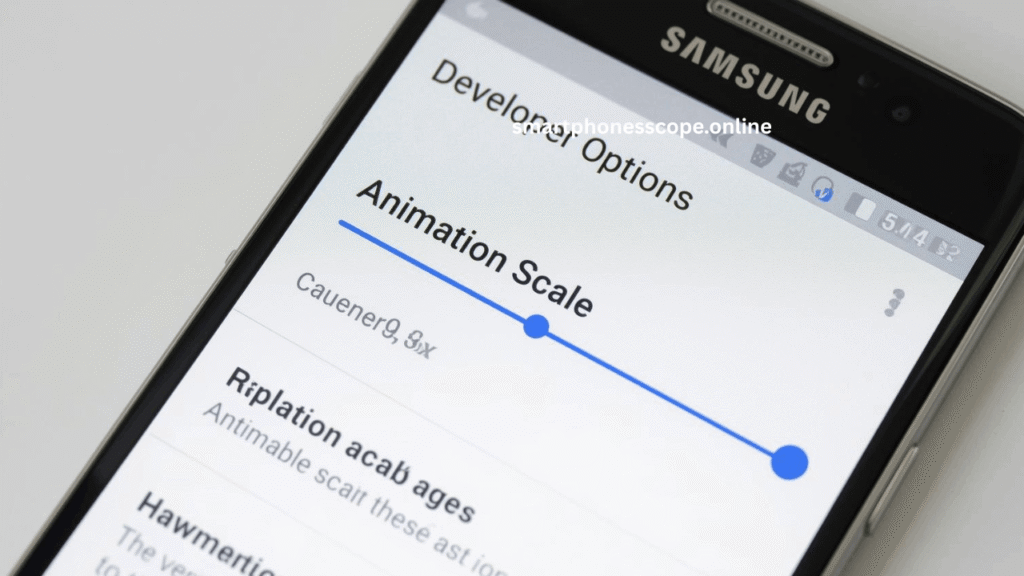
Adjust animation scales:
- Return to Settings > Developer options
- Scroll to Drawing section
- Find these three options:
- Window animation scale → Set to 0.5x
- Transition animation scale → Set to 0.5x
- Animator duration scale → Set to 0.5x
Why this works: Default 1x animation speed prioritizes visual smoothness over perceived speed. Reducing to 0.5x cuts animation duration in half, making every tap, swipe, and transition feel instantaneous. For extremely slow phones, try setting all three to “Animation off” for maximum responsiveness.
Warning: Setting animations to 0x makes phones feel jarring and robotic. The 0.5x sweet spot balances speed with smooth visual feedback.
Step 6: Turn Off Background Apps
Background apps silently consume RAM, battery, and mobile data—all while you’re not even using them. Samsung’s battery optimization features give you powerful control over which apps can run freely and which should stay asleep.
How to restrict background apps:
- Open Settings > Battery > Background usage limits
- Enable Put unused apps to sleep
- Tap Sleeping apps > Add apps
- Select apps you use occasionally (not daily):
- Shopping apps (Amazon, eBay)
- Games
- Food delivery apps
- Travel apps
- Tap Add to confirm
Deep sleeping apps (aggressive restriction):
- Tap Deep sleeping apps > Add apps
- Select apps you rarely use but want to keep installed:
- Banking apps (use only when needed)
- Utilities used monthly
- Backup apps
- These apps won’t run at all in background
Never sleeping apps (exceptions): Add critical apps to “Never sleeping apps” list:
- Messaging apps (WhatsApp, Telegram)
- Email apps
- Calendar
- Alarm clock apps
- Health tracking apps
Additional background restrictions:
| Setting | Location | Impact |
|---|---|---|
| Restrict app battery usage | Apps > [App name] > Battery | Limits individual app background activity |
| Disable auto-sync | Accounts and backup > Manage accounts | Stops constant email/calendar syncing |
| Turn off always-on display | Lock screen > Always On Display | Saves battery and RAM |
Pro tip: After applying these restrictions, monitor your phone for 2-3 days. If you miss important notifications from certain apps, move them to “Never sleeping apps.”
Step 7: Update Software
Samsung software updates aren’t just about new features they contain critical performance improvements, security patches, and bug fixes that directly impact speed. Running outdated software is like refusing free performance upgrades.
Why updates fix lag bugs:
- Memory leak patches improve RAM management
- Optimized code reduces CPU usage
- Security fixes prevent malware slowdowns
- Compatibility updates ensure apps run smoothly
- Battery optimization improves overall efficiency
How to check and install updates:
- Open Settings > Software update
- Tap Download and install
- Wait for check (requires WiFi connection)
- If update available, tap Download
- After download, tap Install now
- Phone will restart automatically (takes 10-15 minutes)
Update types explained:
| Update Type | Frequency | Importance |
|---|---|---|
| Security patches | Monthly | High – fixes vulnerabilities |
| One UI updates | Quarterly | High – major performance improvements |
| Android OS upgrades | Yearly | Critical – new optimization features |
| Carrier updates | Varies | Medium – network improvements |
Auto-update settings: Enable automatic downloads to never miss critical updates:
- Settings > Software update > Auto download over Wi-Fi
- Settings > Software update > Auto update apps (Google Play)
Important: Always update on WiFi with 50%+ battery. Major updates can take 30-60 minutes, so schedule during downtime.
Step 8: Reset Settings (Not Factory Reset)
Resetting settings returns your phone’s configuration to defaults without deleting photos, apps, or personal files—a powerful middle ground between minor tweaks and factory reset. This fixes corrupted settings causing mysterious slowdowns.
Difference between reset settings & factory reset:
| Reset Settings | Factory Reset |
|---|---|
| Keeps all photos, apps, files | Deletes everything |
| Resets WiFi, Bluetooth, settings | Wipes phone completely |
| Takes 2-3 minutes | Takes 20-30 minutes |
| No backup needed | Backup absolutely required |
| Fixes settings corruption | Nuclear option for severe issues |
When to use reset settings:
- Phone suddenly slow after changing multiple settings
- Connectivity issues (WiFi, Bluetooth won’t connect)
- Apps misbehaving but not crashing
- Before trying factory reset
How to reset settings:
- Open Settings > General management
- Tap Reset > Reset all settings
- Enter PIN/password
- Tap Reset settings to confirm
- Wait 2-3 minutes for completion
- Phone restarts automatically
What you’ll need to reconfigure:
- WiFi passwords
- Bluetooth device pairings
- Wallpaper and theme
- Notification settings
- Display preferences
Pro tip: Take screenshots of important settings before resetting so you can quickly restore your preferred configuration.
Step 9: Factory Reset (Last Option)
Factory reset is the nuclear option wiping your Samsung phone completely clean and restoring it to out-of-the-box condition. Use this only when all other methods fail, as it requires significant setup time afterward.
When phone is extremely slow:
- Methods 1-8 provided zero improvement
- Phone frequently freezes or crashes
- Apps consistently fail to open
- Severe malware suspected
- Preparing to sell/trade phone
Backup first (absolutely critical):
- Samsung Cloud backup:
- Settings > Accounts and backup > Back up data
- Enable all toggles
- Tap Back up now
- Google backup:
- Settings > Google > Backup
- Verify backup is enabled
- Tap Back up now
- Manual backups:
- Transfer photos to computer or Google Photos
- Export contacts to Google account
- Save important documents to Google Drive
Factory reset steps:
| Step | Action | Note |
|---|---|---|
| 1 | Settings > General management | Make sure phone charged 50%+ |
| 2 | Tap Reset | Bottom of menu |
| 3 | Factory data reset | Shows what will be deleted |
| 4 | Scroll down, tap Reset | Review backup status |
| 5 | Enter PIN/password | Security verification |
| 6 | Tap Delete all | Final confirmation |
| 7 | Wait 15-20 minutes | Phone restarts multiple times |
| 8 | Set up as new device | Restore from backup |
After factory reset:
- Install only essential apps initially
- Restore data from backup gradually
- Test performance before adding more apps
- Set up security (fingerprint, face unlock)
- Reconfigure settings manually
Warning: Factory reset permanently deletes everything not backed up. Double-check backups completed successfully before proceeding.
Advanced Tips to Make Samsung Phone Faster
Beyond the essential steps, these pro-level optimizations squeeze every bit of performance from your Samsung device. Implement these for sustained long-term speed improvements.
Use Lite versions of apps: Standard apps like Facebook, Instagram, and Messenger are resource hogs. Lite versions use 90% less storage and RAM while maintaining core functionality. Perfect for budget Samsung phones with limited RAM.
- Facebook Lite instead of Facebook (2MB vs 200MB)
- Messenger Lite instead of Messenger
- YouTube Go for video watching
- Twitter Lite (use web version)
- LinkedIn Lite for professional networking
Disable auto-sync selectively: Constant syncing drains battery and CPU power. Disable auto-sync for non-critical accounts:
- Settings > Accounts and backup > Manage accounts
- Tap each account (Google, Samsung, email)
- Disable sync for Calendar, Contacts (if you don’t need real-time updates)
- Keep sync enabled only for Gmail and essential apps
Use Samsung Device Care weekly: Samsung’s built-in optimizer tool provides one-tap maintenance:
- Settings > Device Care > Optimize now
- Runs these optimizations automatically:
- Closes background apps
- Clears cache
- Scans for malware
- Identifies battery-draining apps
Avoid third-party launchers on low-end phones: Custom launchers like Nova or Microsoft Launcher add visual flair but consume extra RAM. If you own a Galaxy A15, A05, or any phone with 4GB RAM or less, stick with Samsung’s One UI launcher for optimal performance.
Replace old battery (if 3+ years old): Battery health directly impacts performance through throttling. If your phone is 3+ years old and feels sluggish especially at low battery percentages:
- Check battery health: Dial
*#0228#or use AccuBattery app - If capacity below 80%, consider professional battery replacement ($50-80)
- Official Samsung service centers recommended for safety
Bonus performance tweaks:
| Tweak | Location | Benefit |
|---|---|---|
| Force GPU rendering | Developer options | Smoother scrolling |
| Disable window animation scale | Developer options | Faster app switching |
| Remove live wallpapers | Settings > Wallpaper | Saves RAM |
| Limit background processes | Developer options > Background process limit | Frees RAM |
| Reduce display resolution | Settings > Display > Screen resolution (S series only) | Better performance |
How to Speed Up Samsung Galaxy A Series (A15, A25, A54)
Budget-friendly Galaxy A series phones require special attention because they operate with tighter hardware constraints. These models typically feature 4-6GB RAM and mid-range processors, making optimization crucial.
Storage control is critical: A series phones often come with 64GB or 128GB storage filling quickly with modern apps. Maintain at least 30% free storage at all times. Use SD card expansion aggressively:
- Move large files to SD card
- Set camera to save directly to SD card (Settings > Camera > Storage location)
- Use SD card as device storage (Settings > Device care > Storage > SD card > Format)
Suggest 6GB+ RAM models: If shopping for new phone, choose variants with 6GB or 8GB RAM minimum:
- Galaxy A15 5G: 6GB version significantly faster than 4GB
- Galaxy A25: 8GB variant handles multitasking smoothly
- Galaxy A54: 8GB model recommended for long-term performance
Specific A series optimizations:
- Disable Samsung AR Zone, AR Emoji, and Bixby (if unused)
- Use Lite apps exclusively (Facebook Lite, Instagram Lite)
- Limit background apps to 3-4 maximum
- Avoid mobile gaming with high graphics requirements
- Keep animations at 0.5x always
Performance mode settings: Enable Performance mode for temporary speed boost during important tasks:
- Swipe down notification panel twice
- Tap battery icon
- Select High performance mode
Warning: High performance drains battery 30-40% faster. Use only when needed.
How to Speed Up Samsung Galaxy S Series (S23, S24, S25)
Samsung’s flagship Galaxy S series deserves premium optimization techniques that leverage their powerful hardware. These phones pack flagship processors, abundant RAM, and advanced cooling systems.
High performance tips: Unlike budget phones, S series devices can handle intensive optimizations without compromise. Unleash full performance with these advanced settings.
Performance mode settings:
- Enable Enhanced processing:
- Settings > Device care > Performance mode
- Select High performance
- Toggle on Enhanced processing for maximum CPU/GPU speeds
- Game Booster optimizations:
- Open Game Launcher app
- Tap menu > Game Booster
- Enable Priority mode (allocates maximum resources to games)
- Toggle Auto screen recording off (saves processing power)
- Adaptive performance:
- Settings > Advanced features > Labs
- Enable Adaptive battery and Adaptive performance
- AI learns usage patterns and optimizes accordingly
Thermal management: S series phones can throttle performance when overheating. Optimize cooling:
- Remove case during intensive tasks
- Avoid direct sunlight when using camera
- Lower screen brightness during gaming
- Close all background apps before heavy tasks
Advanced S series tweaks:
| Feature | Location | Performance Impact |
|---|---|---|
| RAM Plus | Device care > Memory > RAM Plus | Adds 4-8GB virtual RAM |
| Processing speed | Developer options > Force peak refresh rate | Maintains 120Hz constantly |
| App optimization | Apps > [App] > Battery > Unrestricted | Allows full performance for critical apps |
| 5G optimization | Connections > Mobile networks > Network mode | Switch to LTE in weak 5G areas |
Photography optimizations: S23/S24/S25 cameras generate enormous 50-200MP files. Prevent storage bloat:
- Shoot in HEIF format instead of JPEG (50% smaller files)
- Delete burst photos immediately after selecting best shot
- Upload to Google Photos, enable “Free up space” monthly
- Disable “Save RAW copies” unless professional photographer
Pro tip: S series phones rarely need performance optimization if maintained properly. Focus on storage management and software updates for consistent flagship experience.
FAQS
1. Why is my Samsung phone slow even with enough storage?
Sufficient storage alone doesn’t guarantee speed. Check RAM usage (Settings > Device care > Memory) and limit background apps. Outdated software, excessive animations, or degraded battery health also cause slowdowns despite adequate storage.
2. Does clearing cache speed up Samsung phones?
Yes, clearing cache partition removes corrupted temporary files that slow down system processes. Clear app cache monthly and system cache partition quarterly for noticeable performance improvements without losing any personal data.
3. How often should I restart my Samsung phone?
Restart weekly minimum to clear RAM and terminate misbehaving processes. Heavy users should restart every 3-4 days. Enable Auto Restart (Settings > Device care > Auto optimization) for scheduled weekly reboots during sleep hours.
4. Does factory reset make Samsung phone faster?
Factory reset restores original speed by removing all accumulated junk, corrupted files, and problematic apps. Expect 40-60% performance improvement on severely degraded phones, but always backup data first as it’s irreversible.
5. How much free storage should I keep?
Maintain 20-30% free storage minimum (15-20GB on 64GB phones, 30-40GB on 128GB phones). Android performance degrades sharply below 20% free space. Use cloud storage or SD cards to maintain this buffer permanently.
6. Will reducing animations actually make my phone faster?
Reducing animations to 0.5x doesn’t increase processing speed but creates perception of 30-40% faster performance. Apps open, switch, and respond quicker visually. This psychological boost significantly improves user experience on any Samsung phone.
7. Can I speed up my Samsung phone without factory reset?
Absolutely. Try steps 1-8 first: restart, clear cache, delete apps, free storage, reduce animations, restrict background apps, update software, and reset settings. 80% of slowdown issues resolve without factory reset.
8. Do Samsung updates slow down older phones?
Contrary to myth, Samsung updates generally improve performance through optimization patches. Rare exceptions exist with major Android OS upgrades on 4+ year-old hardware. Security patches and One UI updates always recommended regardless of age.
9. How do I know if my Samsung battery is causing slowness?
Check battery health by dialing *#0228# or using AccuBattery app. If capacity below 80% and phone throttles significantly at low battery percentages, degraded battery is throttling performance to prevent shutdowns. Consider replacement.
10. Should I use task killer apps to speed up Samsung?
No. Task killer apps worsen performance by constantly forcing apps to restart, consuming more RAM and battery. Samsung’s built-in Device Care provides superior optimization without third-party apps’ negative side effects.
11. Does SD card slow down Samsung phone?
Slow SD cards (Class 4-6) can lag when accessing stored files. Use minimum Class 10 or UHS-I cards (U1/U3) for optimal performance. High-quality SD cards don’t impact phone speed negatively if properly maintained.
12. Can malware slow down my Samsung phone?
Yes. Malware runs hidden background processes that drain resources severely. Install Samsung’s Device care malware scanner monthly (Settings > Device care > App security) and avoid APK files from unknown sources.
13. Will clearing RAM speed up my Samsung phone?
Temporarily yes, but Android automatically manages RAM efficiently. Constantly clearing RAM forces apps to reload, consuming more battery and processing power. Let Android handle RAM management naturally unless phone completely frozen.
14. How long should Samsung phone optimization take?
Complete optimization following all 9 steps takes 45-90 minutes depending on phone’s condition. Individual steps range from 30 seconds (restart) to 20 minutes (factory reset). Most users see significant improvement after steps 1-6 within 15 minutes.
15. Does disabling Bixby speed up Samsung phones?
Moderately. Bixby Voice and Bixby Routines consume minimal background resources on modern phones. Disabling saves approximately 200-300MB RAM and slight battery improvement, beneficial primarily on budget models with 4GB RAM or less.
Conclusion
Speeding up your slow Samsung phone doesn’t require technical expertise or expensive repairs just consistent maintenance and smart optimization. Start with the quick wins: restart weekly, clear cache monthly, and keep 30% storage free. These three simple habits prevent 70% of performance issues before they start.
For deeper slowdowns, progressively apply the nine-step method outlined above. Most Samsung phones respond dramatically to reducing animations, restricting background apps, and installing software updates. Save factory reset as your last resort, but don’t hesitate when other methods fail a fresh start often delivers the snappy performance you remember from day one.
Regular maintenance schedule for sustained speed:
- Weekly: Restart phone, check storage percentage
- Monthly: Clear app cache, review installed apps, run Device Care optimizer
- Quarterly: Clear cache partition, update all software, review battery health
- Yearly: Consider factory reset if performance declined significantly
Remember, your Samsung phone is powerful technology that deserves proper care. Implement these optimization strategies today and rediscover the lightning-fast performance that made you choose Samsung in the first place. For related performance issues, check our guides on fixing Samsung battery drain and preventing phone overheating maintaining overall device health ensures your Samsung runs smoothly for years to come.