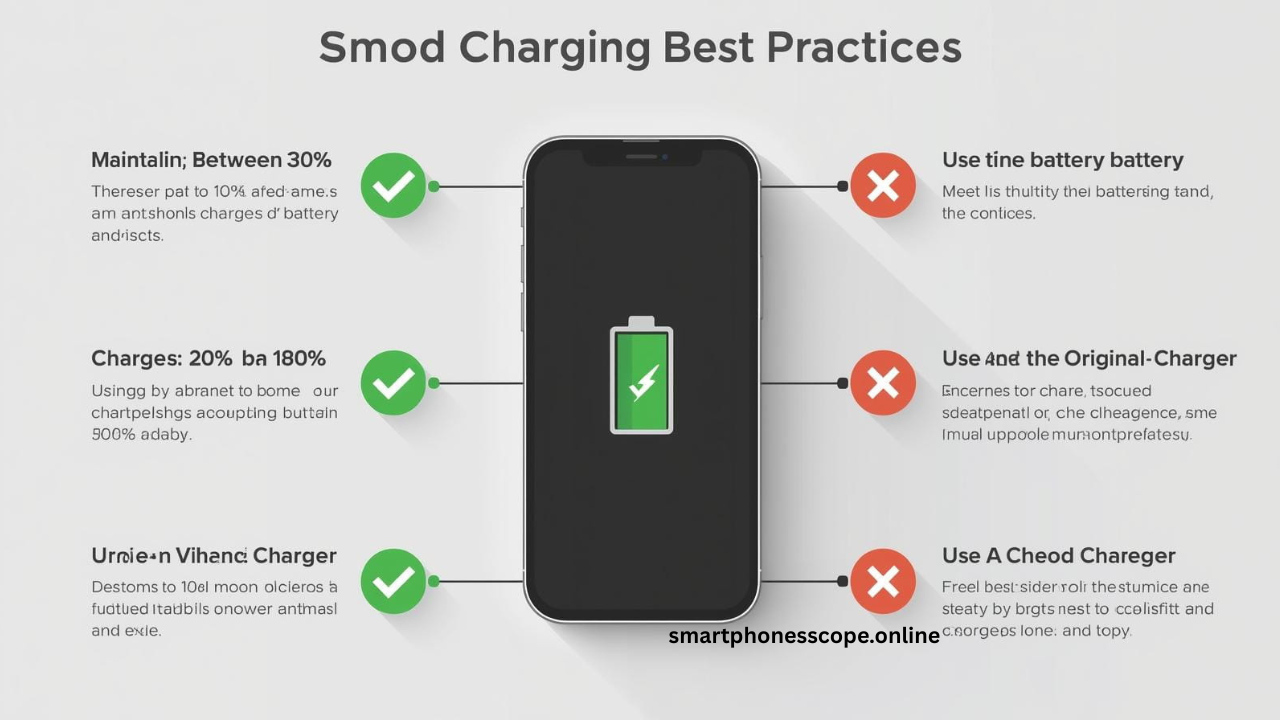
Is your iPhone battery health dropping faster than you expected? You’re not alone. Thousands of iPhone users across the USA wake up to find their battery maximum capacity has plummeted from 100% to 90% in just a few months. It’s frustrating, especially when you’ve invested in a premium device. Apple’s lithium-ion batteries are designed to retain up to 80% capacity after 500 complete charge cycles, but many users experience degradation much sooner. Why does this happen? The answer lies in your daily charging habits, environmental factors, and how you use your device. In this comprehensive 2026 guide, you’ll discover the real reasons behind rapid battery health decline and proven strategies to keep your iPhone battery health above 90% for years. Whether you’re using an iPhone 15, 14, or older models, these expert-backed tips will save you from expensive battery replacements and keep your device running at peak performance.
What Is iPhone Battery Health and Why It Matters?
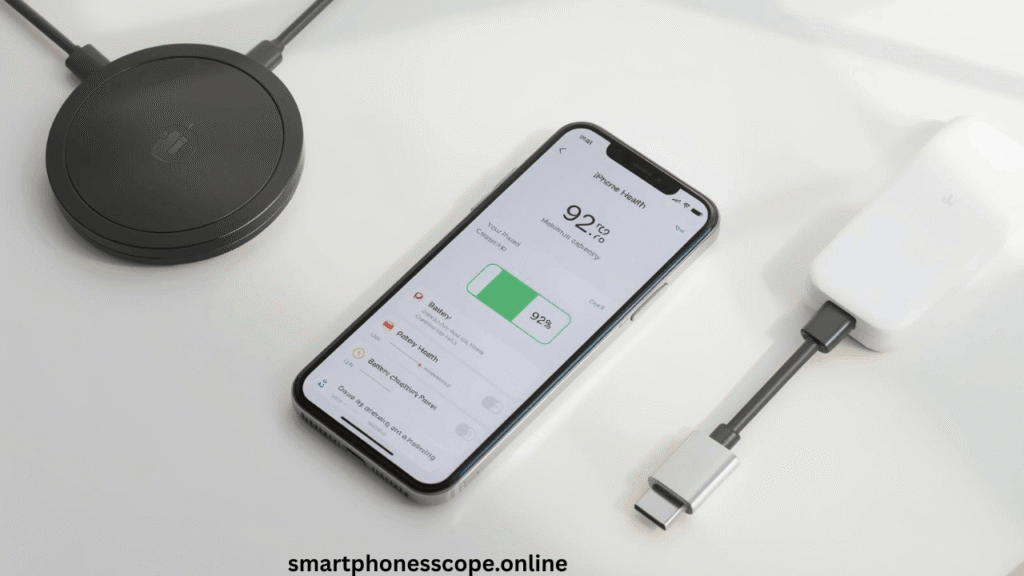
iPhone battery health refers to your device’s maximum charge capacity compared to when it was brand new. You’ll find this metric in Settings → Battery → Battery Health & Charging, displayed as a percentage. A new iPhone starts at 100% maximum capacity, but this number naturally decreases over time due to chemical aging of the lithium-ion battery.
Apple considers any battery above 80% capacity as healthy. This threshold matters because it’s tied to your iPhone’s performance management system. When battery health drops below 80%, iOS may automatically throttle your processor to prevent unexpected shutdowns during demanding tasks.
Here’s why monitoring battery health is crucial: it directly impacts your device’s longevity, resale value, and daily performance. A degraded battery doesn’t just drain faster it can cause your phone to slow down, apps to crash, and your device to overheat during normal use.
Normal degradation means losing approximately 1% battery health every 25 charge cycles under optimal conditions. If you’re losing capacity faster than this benchmark, something in your charging routine or usage pattern needs immediate attention.
Why iPhone Battery Health Drops Fast (Main Reasons)
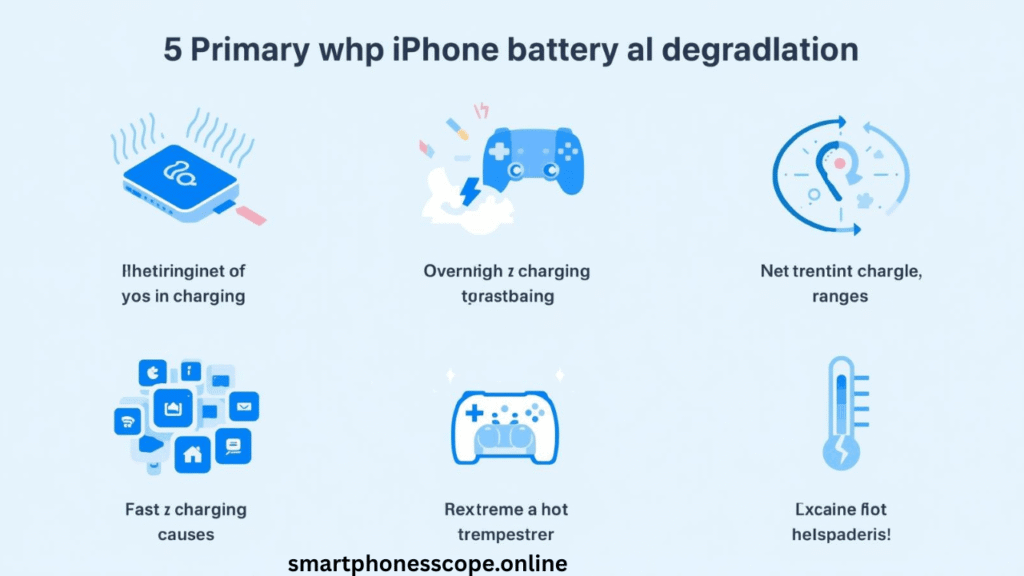
1. Fast Charging & Heat Generation
Heat is the #1 enemy of lithium-ion batteries. When you use fast charging (20W or higher), your iPhone generates significant heat, especially during the first 80% of charging. This thermal stress accelerates chemical reactions inside the battery, causing premature aging.
Cheap, non-certified chargers make this worse. They lack Apple’s temperature regulation technology, pushing excess current that creates dangerous heat levels. Even Apple-certified fast chargers can damage your battery if you charge in hot environments like a car dashboard in summer. The ideal charging temperature range is 62°F to 72°F (16°C to 22°C) anything above 95°F (35°C) causes permanent capacity loss.
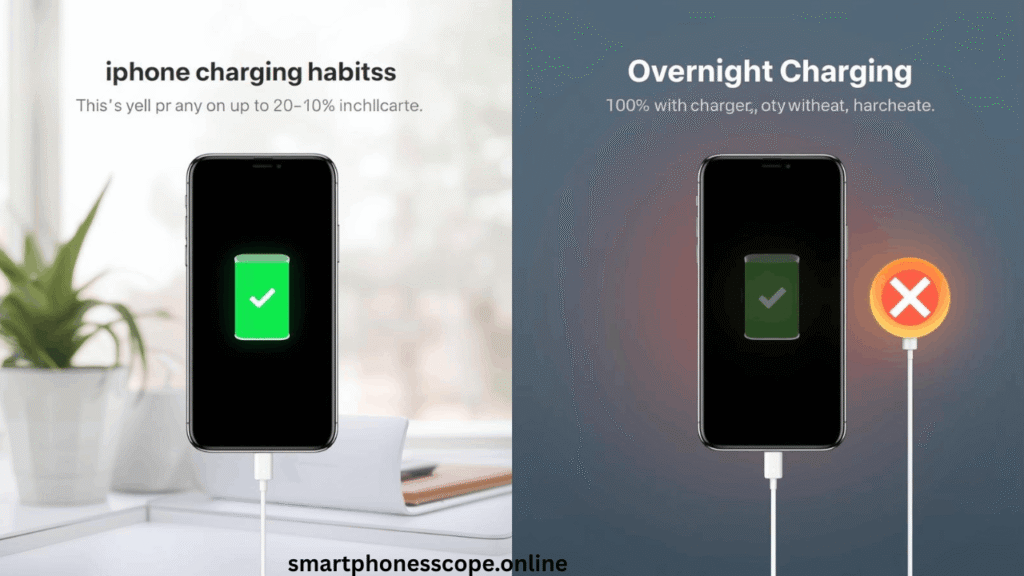
2. Overnight Charging Habit
Leaving your iPhone plugged in overnight seems harmless, but it’s silently killing your battery. Once your device hits 100%, it enters a “trickle charge” state where it constantly tops up tiny capacity losses. This keeps your battery at maximum voltage for 6-8 hours straight—a state that accelerates degradation.
Modern iPhones have Optimized Battery Charging to combat this, but it only works if you have consistent sleep schedules. Without this feature active, your battery remains under stress all night, experiencing unnecessary charge cycles that count toward its 500-cycle lifespan.
3. Gaming While Charging
Playing graphics-intensive games like Genshin Impact or Call of Duty Mobile while charging creates a double heat problem. Your processor generates heat from gaming, while the battery simultaneously heats up from charging. This combination can push internal temperatures above 104°F (40°C), causing irreversible damage to battery chemistry.
Each session of gaming while charging can degrade battery health as much as 5-10 regular charge cycles. The battery management system tries to protect itself by throttling charge speed, but the sustained high temperature still causes long-term harm.
4. Background Apps & Location Services
Apps running in the background constantly drain and recharge your battery, creating micro-cycles that add up quickly. Facebook, Instagram, and navigation apps with “Always On” location permissions are the worst offenders. They keep your GPS, cellular radio, and processor active even when you’re not actively using your phone.
Each micro-cycle might seem insignificant, but if 20 apps are refreshing throughout the day, you’re adding dozens of partial cycles weekly. These cycles count toward your battery’s total lifespan, accelerating the journey to that critical 80% threshold.
5. Extreme Weather (USA Summers & Winters)
Does fast charging damage battery ? truth vs myth 2026Temperature extremes destroy battery health faster than any charging habit. In summer states like Arizona or Texas, leaving your iPhone in a car can expose it to 140°F+ (60°C+) temperatures. Winter states like Minnesota see the opposite problem—batteries lose temporary capacity in freezing conditions, and repeated freeze-thaw cycles cause permanent damage.
Apple explicitly warns against operating iPhones outside the 32°F to 95°F (0°C to 35°C) range. Even short exposure to extreme temperatures can cause a 2-3% permanent capacity loss in a single incident.
Signs Your iPhone Battery Is Degrading Too Fast
Recognizing early warning signs helps you take corrective action before permanent damage occurs. Here are the red flags:
Rapid battery drain is the most obvious symptom your phone dies by lunchtime when it used to last all day. This happens because degraded batteries can’t hold a full charge, even if the percentage display says 100%.
Frequent overheating during normal tasks like browsing or texting indicates internal resistance has increased. Healthy batteries stay cool; degraded ones generate excess heat even during light use.
Sudden percentage drops are particularly concerning. Your battery might jump from 40% to 20% in minutes, or shut down unexpectedly at 15%. This happens when the battery’s voltage can’t sustain the displayed charge level.
Performance throttling kicks in when iOS detects battery degradation. Your apps open slower, animations stutter, and even typing feels laggy. Check Settings → Battery → Battery Health for a “Performance Management” message confirming this issue.
How to Check iPhone Battery Health (Step-by-Step)
Monitoring your battery health takes just 30 seconds. Follow this simple process:
Step 1: Open the Settings app (the gray gear icon on your home screen).
Step 2: Scroll down and tap Battery in the main settings menu.
Step 3: Select Battery Health & Charging at the top of the Battery screen.
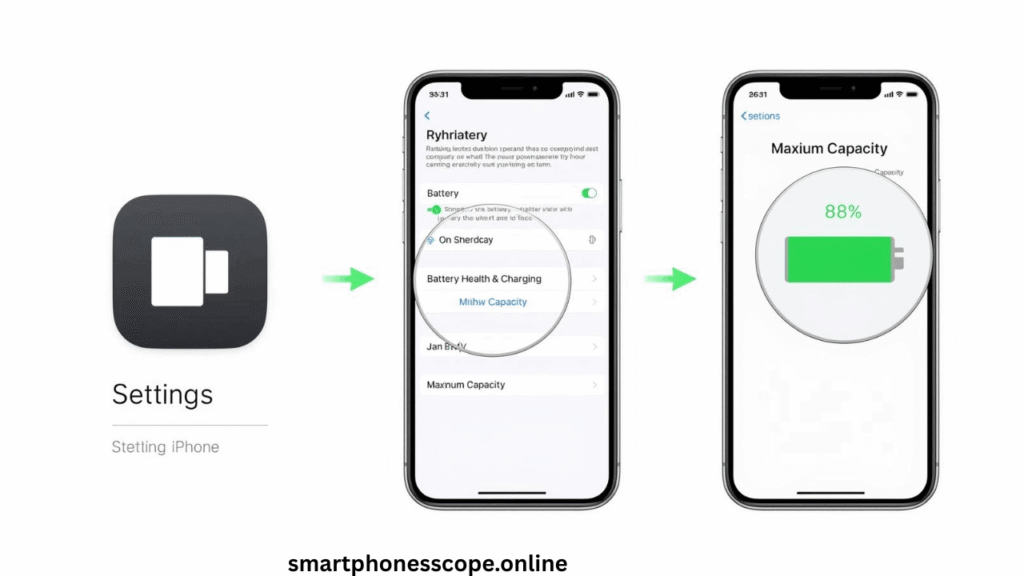
Step 4: Check your Maximum Capacity percentage—this is your current battery health compared to when it was new.
Step 5: Review Peak Performance Capability status below. If it says “Your battery is currently supporting normal peak performance,” you’re in good shape. Any other message indicates degradation affecting performance.
Bonus Check: On iPhone 15 and newer with iOS 17+, you’ll also see Cycle Count showing exactly how many complete charge cycles your battery has experienced. This helps you track degradation against Apple’s 500-cycle benchmark.
10 Proven Ways to Fix Fast Battery Health Drop (2026 Tips)
Enable Optimized Battery Charging
Optimized Battery Charging learns your daily charging routine and delays charging past 80% until you need it. Navigate to Settings → Battery → Battery Health & Charging and toggle this feature ON. It significantly reduces time spent at 100% charge, which is the most stressful state for battery chemistry. For 2026 models, Apple’s AI has improved learning algorithms that adapt within 3-5 days of consistent usage patterns.
Avoid Charging Above 80–90% Daily
The 80% rule is backed by battery science. Lithium-ion batteries experience exponential stress increases above 80% charge. If you don’t need a full charge for your daily routine, unplug at 80-85%. iPhone 15 and newer have a built-in 80% Charging Limit option in Battery settings—enable it for automatic protection. This single change can extend battery lifespan by 50% or more.
Use Original or MFi Certified Charger
Counterfeit chargers lack proper voltage regulation, current limiting, and temperature sensors. They’re the leading cause of premature battery failure. Stick with Apple’s official chargers or MFi (Made for iPhone) certified alternatives from brands like Anker, Belkin, or Nomad. These chargers communicate with your iPhone’s power management chip to optimize charging speed and minimize heat generation.
Remove Phone Case While Charging
Thick cases, especially leather or rugged protective ones, trap heat during charging. Your iPhone’s temperature can increase by 10-15°F just from insulation. Remove your case when charging, particularly if you’re fast charging or in warm environments. This simple step improves heat dissipation and can prevent 2-3% annual battery health loss.
Turn Off Background App Refresh
Go to Settings → General → Background App Refresh and either disable it entirely or select Wi-Fi only. This prevents apps from constantly checking for updates over cellular, which drains battery and creates unnecessary charge cycles. Social media apps, email clients, and news apps are the worst offenders. Manually refresh when you open them instead.
Reduce Screen Brightness / Auto Brightness
Your display consumes 30-40% of total battery power. Lower your screen brightness to the minimum comfortable level, and enable Auto-Brightness in Settings → Accessibility → Display & Text Size. Modern OLED screens (iPhone 12 and newer) save even more power by using true black pixels that require zero energy.
Disable Always-On Location Tracking
Check Settings → Privacy & Security → Location Services and review which apps have “Always” access. Change non-essential apps to “While Using” or “Ask Next Time.” GPS is one of the most power-hungry features, and constant location tracking creates continuous battery drain that forces more frequent charging cycles.
Update to Latest iOS Version
Apple releases battery optimization improvements with every iOS update. These include better power management algorithms, bug fixes that reduce background drain, and enhanced charging protocols. Go to Settings → General → Software Update and install any available updates. The 2026 iOS versions include advanced AI-powered battery longevity features.
Avoid Heat Exposure
Never leave your iPhone in direct sunlight, hot cars, or near heat sources like radiators. Even 20 minutes at 140°F can cause permanent 2-3% capacity loss. In summer, keep your phone in a cool bag or air-conditioned environment. In winter, keep it in an inside pocket close to body heat rather than exposing it to freezing temperatures.
Use Low Power Mode Smartly
Low Power Mode (Settings → Battery) reduces background activity, visual effects, and system performance to extend battery life. Use it proactively when you’re at 40-50% battery rather than waiting until 20%. This reduces the number of deep discharge cycles, which are more stressful on battery chemistry than shallow cycles.
Best Charging Routine for iPhone Users (Expert Method)
The optimal charging routine balances convenience with battery longevity. Here’s the expert-recommended approach for 2026:
Ideal Charge Range: Keep your battery between 20% and 80% for daily use. This shallow cycling minimizes stress on the battery’s chemical structure and can double your battery’s useful lifespan compared to full 0-100% cycles.
When to Charge: Plug in when you drop to 20-30%, and unplug at 75-85%. Avoid letting your battery drop below 10% regularly, as deep discharges create extra stress. Likewise, avoid keeping it at 100% for extended periods.
Daily Habits:
- Morning: Charge during your morning routine (30-45 minutes)
- Midday: Top up during lunch if needed (20-30 minutes)
- Evening: Short charge while relaxing (30-40 minutes)
- Never: Full overnight charging sessions
Weekly Full Cycle: Once every 2-3 weeks, do a complete 100% charge followed by normal use until 10-15%. This recalibrates your battery meter for accurate percentage readings, but shouldn’t be your daily routine.
Does Fast Charging Really Damage iPhone Battery? (Myth vs Reality)
The truth: Fast charging doesn’t directly damage your battery heat does. Apple’s fast charging technology is intelligently designed with protective measures, but understanding the nuances matters.
When you use a 20W+ charger, your iPhone charges rapidly up to 50% in about 30 minutes, then automatically slows down for the remaining 50%. This two-phase approach minimizes heat generation during the most critical charging period.
The Reality Check:
| Myth | Reality |
|---|---|
| Fast charging kills batteries fast | Only if heat isn’t managed properly |
| You should always slow charge | Fast charging to 80% is safe with proper cooling |
| Wireless charging is safer | Actually generates more heat than wired |
| More watts = more damage | Apple limits actual power based on temperature |
Apple’s optimization includes thermal throttling, voltage regulation, and charge curve algorithms that adapt based on battery temperature, age, and charge level. The real enemy isn’t the wattage—it’s charging in hot environments or using uncertified chargers that bypass these protections.
Best Practice: Fast charge up to 50-60% when you need quick power, then switch to standard 5W charging or unplug entirely if time allows.
When Should You Replace Your iPhone Battery?
Battery replacement becomes necessary when performance impacts outweigh the cost. Here’s how to make that decision:
The 85% vs 80% Debate: Apple triggers performance management at 80%, but you might notice degradation starting at 85%. If you’re at 85% and experiencing daily charging struggles, replacement makes sense. Below 80%, replacement is essential for normal performance.
Official Apple Replacement Signs:
- Maximum capacity below 80%
- “Service” message in Battery Health
- Performance management active
- Unexpected shutdowns occurring
- Battery draining 40%+ in 2-3 hours of light use
Cost vs Benefit Analysis (2026 Pricing):
| iPhone Model | Apple Battery Replacement | Performance Gain | Worth It? |
|---|---|---|---|
| iPhone 15/15 Pro | $99 | Restores to new condition | Yes, if battery <85% |
| iPhone 14/13 | $89 | Full performance restoration | Yes, if battery <80% |
| iPhone 12/11 | $89 | Significant improvement | Maybe, depends on upgrade plans |
| iPhone X or older | $89 | Better, but aging hardware | Only if keeping 1+ years |
Third-party options cost $50-70 but void your warranty and may use lower-quality batteries. Stick with Apple or Apple Authorized Service Providers for guaranteed quality.
Decision Rule: If your iPhone is less than 3 years old and battery health is below 85%, replacement is worthwhile. If your device is 4+ years old, evaluate whether upgrading makes more financial sense.
Battery Health Tips for Long-Term iPhone Users (USA Guide 2026)
Travel Charging Tips
When traveling across the USA, adapt your charging strategy to different scenarios. On flights, use airplane mode while charging to reduce heat from cellular radio activity. In hotels, avoid charging directly next to heating vents or air conditioning units that create temperature fluctuations. Carry a certified portable power bank (Anker or Belkin recommended) to avoid desperate charging in hot cars or extreme conditions.
Car Charging Mistakes
Dashboard wireless chargers are battery killers. They combine direct sunlight heat with wireless charging inefficiency, creating temperatures above 120°F. If you must charge in your car, use a wired connection and position your phone in an air-conditioned vent mount. In summer states like Florida or California, never leave your iPhone charging in a parked car—even 10 minutes can cause damage.
Wireless Charging Usage
Wireless charging generates 30-40% more heat than wired charging due to energy loss in the induction process. Use it for convenience, not overnight charging. If you prefer wireless charging, ensure your charging pad has active cooling or use it in well-ventilated areas. Remove your phone case during wireless charging, as the combination of trapped heat and inefficient charging is particularly harmful.
FAQs
How fast should iPhone battery health drop?
Normal degradation is approximately 1% per 25 complete charge cycles, or about 8-12% per year with average use.
Is 90% battery health after 1 year normal?
Yes, 90-95% after one year is perfectly normal and indicates healthy battery aging.
Should I charge my iPhone overnight?
Not recommended unless Optimized Battery Charging is enabled; it causes unnecessary stress keeping battery at 100%.
Does iOS update affect battery health?
Updates don’t directly affect health, but may temporarily increase background activity during indexing and optimization.
How long does an iPhone battery last?
Apple designs batteries to retain 80% capacity after 500 complete cycles, typically 2-3 years of average use.
Can I stop battery health from decreasing?
No, but you can slow degradation to 5-8% per year with optimal charging habits.
Is 85% battery health bad?
Not bad, but indicates you’re approaching the 80% threshold where performance management may activate.
Does dark mode save battery?
Yes, on OLED iPhones (12 and newer), dark mode can reduce screen power consumption by 30%.
Should I use Low Power Mode all the time?
No, it reduces performance; use it strategically when battery is below 50%.
Can extreme cold permanently damage battery?
Temporary capacity loss occurs in cold, but repeated freeze-thaw cycles cause permanent degradation.
Is wireless charging worse than wired?
Yes, it generates more heat and is less efficient, causing faster battery degradation.
How often should I do a full charge cycle?
Every 2-3 weeks to recalibrate the battery meter; not necessary more frequently.
Does using original Apple charger matter?
Yes, MFi certification ensures proper voltage regulation and temperature management.
Can battery health increase?
No, once capacity is lost, it’s permanent; percentage may fluctuate slightly due to calibration.
What kills iPhone battery health fastest?
Heat exposure, especially charging in hot environments or gaming while charging.
Conclusion
Maintaining your iPhone battery health above 90% requires consistent daily habits, not occasional fixes. The three most impactful strategies are: keeping your charge between 20-80%, avoiding heat exposure during charging, and using certified chargers exclusively.
Quick Summary of Essential Habits:
- Enable Optimized Battery Charging immediately
- Charge in cool environments without phone cases
- Avoid gaming or intensive tasks while charging
- Disable unnecessary background app refresh and location services
- Use fast charging strategically (up to 50%), then slow charge or unplug
Your Action Plan: Start today by checking your current battery health and enabling the 80% charging limit on compatible iPhones. Review your location services and background app settings this week. Replace any non-certified chargers immediately. These small changes compound over months to add 1-2 years to your battery’s effective lifespan.
Remember, perfect battery care isn’t about obsession it’s about building sustainable habits that protect your investment without sacrificing usability. You can enjoy your iPhone fully while keeping battery health in the 90%+ range for 18-24 months. The cost of battery replacement ($89-99) is real, but the value of these preventive habits is measured in years of peak performance and higher resale value.
Take action now, and your future self will thank you when your iPhone still runs strong while others are scheduling battery replacements