Is yourSamsung phone fast charging not working? You’re not alone thousands of Samsung users face this frustrating issue every single day. One moment your Galaxy phone charges at lightning speed, and the next, it crawls like a turtle. Whether you own a Samsung Galaxy S24, A55, or any other model, slow or broken fast charging can completely ruin your day. In this detailed, step-by-step guide, we will walk you through every proven fix from simple settings tweaks to hardware checks so you can get your fast charging back to full speed as quickly as possible.
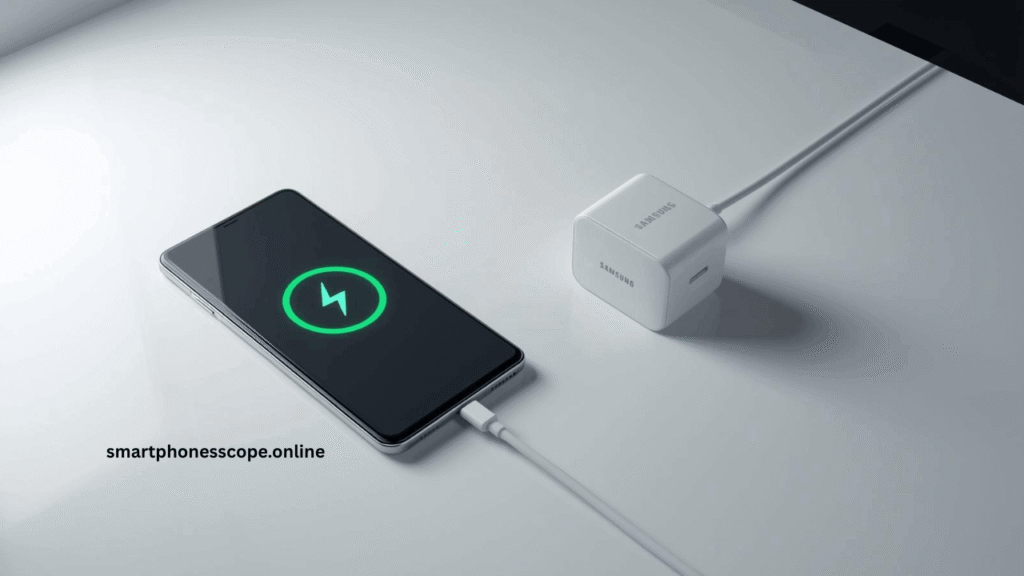
Samsung phone fast charging not working fix guide – Galaxy phone connected to original charger
Quick Reference Table:
Problem
Likely Cause
Quick Fix
Charging very slow
Wrong charger or cable
Use original Samsung 25W+ adapter
Fast charging disabled
Settings turned off
Enable in Battery settings
Charging stops suddenly
Phone overheating
Remove case, cool device
No charging response
Dirty or damaged port
Clean port or visit service center
Wireless charging slow
Case blocking signal
Remove phone case
Fast charging worked before
Software bug
Restart or update One UI
Battery draining fast
Old or degraded battery
Check battery health
Check If Fast Charging Is Enabled
How to Enable Fast Charging Working
The most surprisingly common reason Samsung fast charging stops working is that the feature simply gets turned off sometimes after a software update or accidental settings change.
Steps to enable fast charging:
Open Settings on your Samsung phone
Tap Battery and device care
Tap Battery
Tap More battery settings
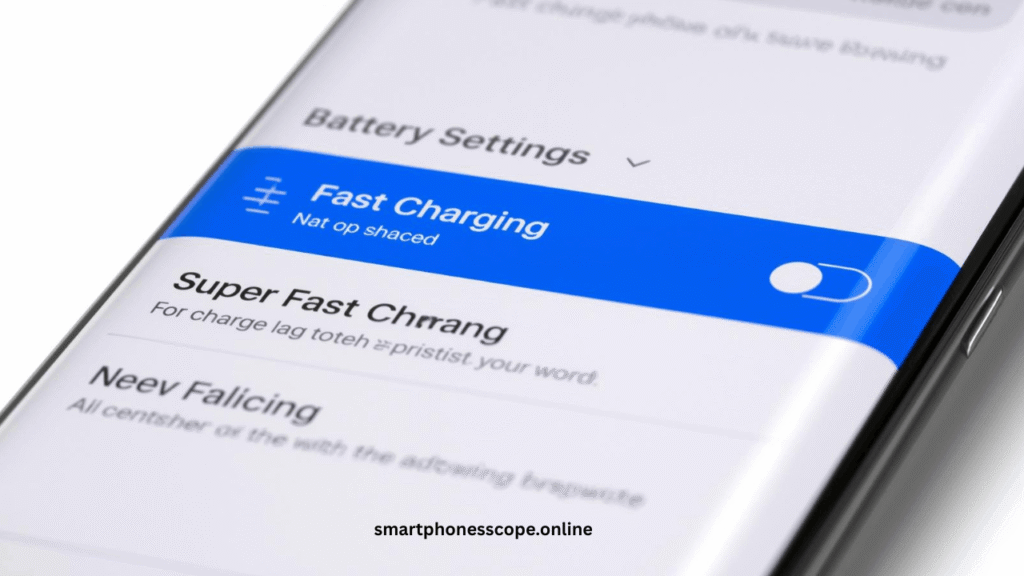
Toggle ON Fast charging or Super fast charging
Fast Charging vs Super Fast Charging
Feature
Speed
Compatible Devices
Fast Charging
15W
Galaxy A series, older S series
Super Fast Charging
25W
Galaxy S21 and above
Super Fast Charging 2.0
45W
Galaxy S22 Ultra, S23 Ultra, S24 Ultra
Note: If you do not see the fast charging working option in settings, your device model may not support it, or the feature may be hidden when a non-compatible charger is connected.
Samsung battery settings fast charging toggle enable – One UI settings menu
2. Use Original Samsung Charger Working
Why Your Charger Matters More Than You Think
This is one of the most emotionally painful lessons Samsung users learn the hard way cheap third-party chargers silently destroy fast charging performance. A counterfeit or low-quality charger may physically fit your phone but will never deliver the correct wattage needed for fast charging.
Original vs Fake Charger Comparison
Feature
Original Samsung Charger
Cheap Third-Party Charger
Wattage Output
25W / 45W as rated
Often only 5W–10W actual
Fast Charging Support
Full support
No or inconsistent support
Safety Certification
Yes (UL, CE certified)
Rarely certified
Cable Quality
USB-C 3.0 standard
Poor conductors, high resistance
Long-term Battery Safety
Safe
Risk of battery damage
Always use:
Original Samsung EP-TA800 (25W) or EP-TA845 (45W) adapter
Original USB-C to USB-C cable
Samsung-certified accessories from authorized dealers
Pro Tip: If your box did not include a charger (Galaxy S21 and later), purchase directly from Samsung’s official store or an authorized retailer.
Inspect Your Charging Cable
Signs Your Cable Is Killing Your Fast Charging
Your charging cable is often the weakest link in the charging chain, yet most users never think to replace it. A damaged cable can reduce charging speed dramatically or stop it entirely.
Warning signs of a bad cable:
Visible fraying or kinking near the connectors
Cable bends or kinks sharply at one spot
Charging only works when held at a specific angle
Charging cuts in and out randomly
Simple Cable Test Method
Borrow a known-good original Samsung cable
Connect it to your original adapter and your phone
If fast charging resumes your old cable was the problem
Replace immediately with a genuine USB-C cable rated for 3A or higher
Note: Even cables that look fine externally can have broken internal wires. Always test with a replacement before assuming the problem is with the phone itself.
Clean Your Charging Port
How Dust and Lint Block Fast Charging Working
Your Samsung phone’s USB-C port is a tiny opening that collects pocket lint, dust, and debris over time. Even a small amount of buildup can prevent a proper connection between the cable and port resulting in slow or no charging.
Safe Cleaning Steps
Power off your Samsung phone completely
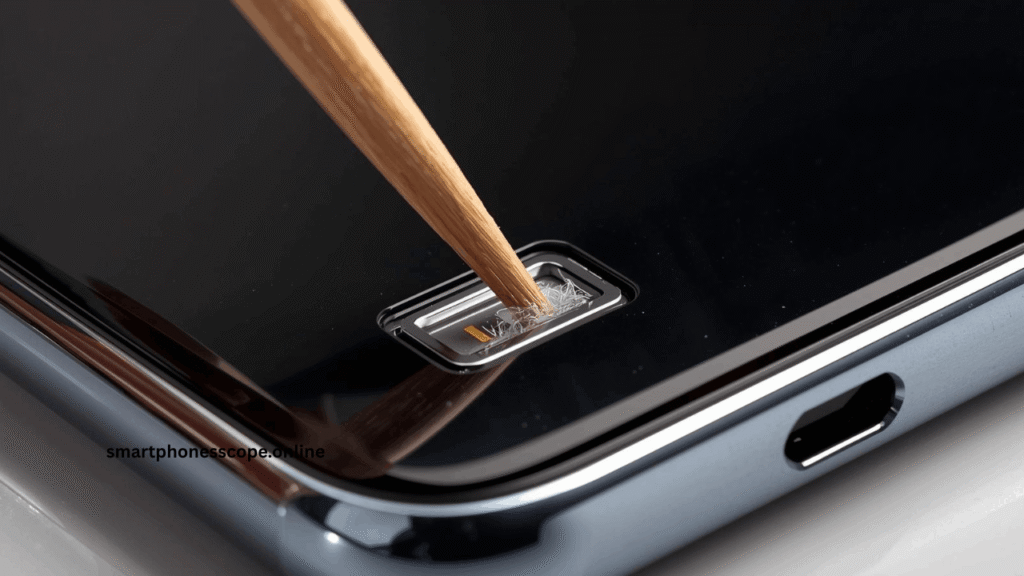
Use a wooden toothpick or plastic dental pick — never metal
Gently scrape along the inside walls of the port
Use a can of compressed air to blow out loosened debris
Inspect the port with a flashlight
Reconnect your charger and test
Warning: Never use metal objects, water, or alcohol directly inside the port. If your phone was recently exposed to water or moisture, let it dry completely for at least 24–48 hours before charging.
How to clean Samsung phone charging port safely to fix slow charging issue
Restart Your Samsung Phone
How a Simple Restart Fixes Fast Charging
It sounds almost too simple but a quick restart resolves a surprisingly large number of Samsung fast charging problems. Temporary software bugs, memory leaks, and background process conflicts can all interfere with the charging controller, causing fast charging to drop to standard speeds.
Normal restart:
Press and hold the Power button
Tap Restart
Wait for the phone to fully reboot
Plug in your charger and check
Force restart (if phone is frozen):
Press and hold Volume Down + Power button simultaneously
Hold for 7–10 seconds until the screen goes black
Release when Samsung logo appears
Check for Phone Overheating
Why Heat Is the Silent Enemy of Fast Charging Working
Samsung phones are intelligently designed with thermal protection when the device gets too hot, it automatically reduces charging speed to protect the battery and internal components. This is not a bug; it is a safety feature. However, it can make it seem like fast charging has stopped working.
Common causes of overheating during charging:
Playing graphics-heavy games while charging
Streaming video for extended periods
Too many apps running in the background
Direct sunlight exposure
Using a thick phone case that traps heat
Cooling Tips to Restore Fast Charging Working
Remove your phone case while charging
Close all background apps before plugging in
Avoid using the phone while it charges
Charge in a cool, shaded environment
Never charge on soft surfaces like beds or sofas
Pro Tip: Fast charging generates heat naturally. If your phone consistently overheats during charging, this could signal a deeper battery health issue — check Section 11.
Update Your Samsung Software (One UI)
How Outdated Software Breaks Fast Charging Working
Samsung regularly releases One UI updates that fix charging bugs, optimize battery performance, and patch known issues. Running outdated software is a surprisingly common reason fast charging suddenly stops working especially after a partial update that did not install correctly.
How to update Samsung One UI:
Go to Settings
Scroll down to Software update
Tap Download and install
If an update is available, tap Install now
Restart your phone after the update completes
Note: Always keep your Samsung phone updated to the latest security patch. Security patches often contain battery and charging driver fixes that are not advertised in the main changelog.
Test With Another Charger Working
Isolating the Problem: Charger or Phone?
Before assuming your Samsung phone has a hardware problem, it is important to systematically test your charger and cable separately. This simple process can save you an unnecessary trip to the service center.
Testing steps:
Test your charger with another Samsung phone — if it fast charges that phone, your charger is fine
Test your phone with another Samsung-compatible charger — if your phone fast charges, your original charger is the problem
Test different cables separately — swap cables one at a time
Check the adapter wattage — a 5W adapter will never fast charge regardless of phone settings
Test Result
Conclusion
New charger works, old does not
Replace original charger
New cable works, old does not
Replace USB-C cable
Nothing works on your phone
Possible phone hardware issue
Your charger works on other phones
Settings or software issue on your phone
Disable Battery Protection Features
What Battery Protection Mode Does to Charging Speed
Samsung’s Battery Protection feature (introduced in One UI 4.0 and later) limits charging to 80% or 85% to extend long-term battery life. While this is excellent for battery health, many users do not realize it is enabled — and wonder why their phone never charges above 80% or seems to slow down near that threshold.
How to check and disable Battery Protection:
Go to Settings > Battery and device care > Battery
Tap More battery settings
Look for Battery protection or Protect battery
Toggle it OFF if you need full 100% charges
Pro Tip: If you keep your phone plugged in overnight regularly, turning Battery Protection ON is a smart long-term choice. Just remember it limits charging to 80–85%.
Boot Into Safe Mode
How Third-Party Apps Can Disable Fast Charging
This one surprises most users certain third-party apps can interfere with your Samsung’s charging system. Battery optimizer apps, screen-on chargers, antivirus tools, and even some launchers have been known to conflict with fast charging protocols.
How to enter Safe Mode on Samsung:
Press and hold the Power button
Touch and hold the Power off option on screen
Tap Safe mode when prompted
Your phone restarts with only system apps running
In Safe Mode:
Plug in your charger
Check if fast charging works
If YES — a third-party app is the culprit
Exit safe mode, then uninstall recently added apps one by one
Check Your Battery Health
Signs Your Samsung Battery Is Too Old to Fast Charge
Over time, lithium-ion batteries degrade and lose their ability to accept charge at high rates. An old or worn battery may physically prevent fast charging from working properly, even with a perfect charger and cable.
Warning signs of a degraded battery:
Battery drains from 100% to 20% in just 3–4 hours of normal use
Phone shuts off unexpectedly at 15–20% battery
Battery swells slightly (phone back appears to bulge)
Charging speed has gradually slowed over many months
How to check battery health using Samsung Members:
Open the Samsung Members app
Tap Get help
Tap Interactive checks
Select Battery to run a diagnostic
⚡ Note: Samsung batteries are rated for approximately 500 full charge cycles. After that, capacity and charging speed can decline noticeably. If your phone is 3+ years old, battery replacement may be the best solution.
Wireless Charging Problems
Why Your Samsung Wireless Charging Is Slow
If you use a wireless charger and notice slow speeds, the problem is almost always one of these three things:
Common wireless charging issues:
Misaligned placement — The phone’s charging coil must align precisely with the wireless pad’s coil. Even a few millimeters off-center can cut speeds significantly.
Thick phone case blocking signal — Cases thicker than 3mm, metal cases, or cases with card holders can block wireless charging entirely. Remove your case and test.
Incompatible wireless charger — Samsung’s Super Fast Wireless Charging (15W) only works with Samsung-certified wireless chargers. Generic Qi chargers max out at 5W–7.5W.
Wireless Charger Type
Speed
Works With
Standard Qi charger
5W
All Qi-enabled Samsung phones
Samsung Fast Wireless Charger
10W–15W
Galaxy S and Z series
Super Fast Wireless Charging
15W
Galaxy S21+ and above
Factory Reset (Last Resort Option)
When and How to Factory Reset Your Samsung Phone
A factory reset is the nuclear option it erases everything and returns your phone to its out-of-box state. Only consider this if every other fix has failed and you are certain the problem is software-related, not hardware.
Before you reset back up everything:
Photos and videos to Google Photos or Samsung Cloud
Contacts to Google account
App data using Samsung Smart Switch
Important files to a computer or external storage
Factory reset steps:
Go to Settings > General management
Tap Reset
Tap Factory data reset
Scroll down and tap Reset
Enter your PIN if prompted
Tap Delete all
After reset, set up your phone fresh and test fast charging before restoring any apps or data.
When to Visit a Samsung Service Center
Hardware Problems You Cannot Fix at Home
If you have tried every fix in this guide and fast charging still does not work, the problem is very likely hardware-related and requires professional attention.
Signs you need professional repair:
Charging port is physically damaged, bent, or corroded
Phone was dropped in water and charging never recovered
Fast charging indicator appears but speed is still only 5W
Phone gets extremely hot even with just 5 minutes of charging
Battery is visibly swollen
What Samsung technicians check:
Charging IC (integrated circuit) — the chip that controls charging speed
USB-C port connector and solder points
Battery cell health with professional diagnostic tools
Motherboard charging pathways
Pro Tip: Always check your Samsung warranty status before paying for repairs. If your phone is under 1-year manufacturer warranty, charging hardware issues are typically covered. Visit to check your warranty status.
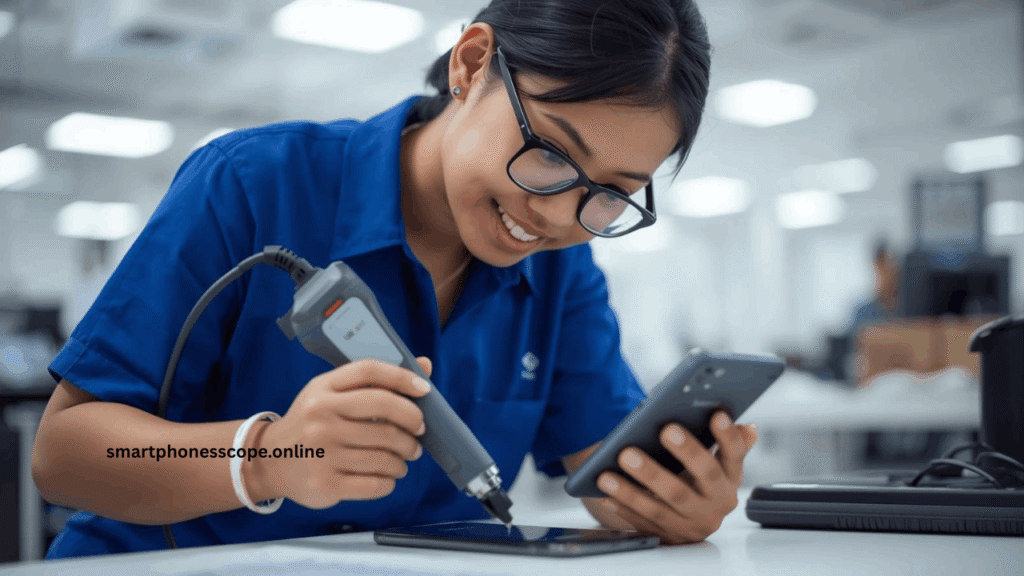
Samsung authorized service center technician repairing phone charging port hardware issue
Frequently Asked Questions (FAQs)
Q1: Why is my Samsung charging slowly all of a sudden? The most common causes are a damaged cable, a non-original charger, fast charging being disabled in settings, or the phone overheating. Start by checking Settings > Battery > More battery settings to confirm fast charging is enabled.
Q2: Why does Samsung fast charging stop suddenly while charging? This usually happens due to overheating. Samsung’s thermal protection system automatically slows or stops fast charging when the device temperature exceeds a safe threshold. Remove the case and avoid using the phone while charging.
Q3: Can cheap chargers permanently damage my Samsung phone? Yes. Low-quality chargers can deliver inconsistent voltage that damages the battery cells over time, reduces maximum charging capacity, and in rare cases can cause the battery to swell. Always use Samsung-certified accessories.
Q4: Is super fast charging safe for daily use? “ Yes. Samsung’s Super Fast Charging (25W and 45W) is engineered to be safe for daily use. The phone’s charging controller intelligently manages voltage and temperature. Using original accessories is key to maintaining safety.
Q5: How do I know if my Samsung charging port is damaged? Signs include the cable feeling loose when plugged in, charging only working at certain angles, visible corrosion or bent pins inside the port, and the phone not recognizing the cable at all.
Q6: Does wireless charging support fast charging on all Samsung phones? No. Super Fast Wireless Charging (15W) is only supported on Galaxy S21 series and newer flagship models, and requires a Samsung-certified wireless charger. Older models and mid-range phones are limited to standard Qi speeds.
Q7: Can a software update fix fast charging issues? Absolutely. Samsung frequently patches charging bugs through One UI updates and monthly security patches. Always keep your software updated.
Q8: What wattage charger do I need for Samsung fast charging? At minimum, a 15W adapter for standard fast charging. For Super Fast Charging, you need a 25W adapter. For 45W Super Fast Charging 2.0, you need the dedicated 45W Samsung adapter.
Q9: Why does my Samsung show “Fast Charging” but charge slowly? This can happen when the cable has internal damage, the adapter cannot deliver full rated wattage, or background processes are consuming too much power. Try a different cable first.
Q10: How long does a Samsung battery last before needing replacement? Most Samsung batteries maintain good health for 2–3 years or approximately 500 full charge cycles. After this point, charging speed and battery capacity can decline noticeably.
Q11: Will Safe Mode fix my fast charging issue permanently? Safe Mode only helps you identify if a third-party app is causing the problem. Once you identify and uninstall the problematic app in normal mode, the fix becomes permanent.
Q12: Is it okay to use the phone while fast charging? It is not recommended. Using the phone while fast charging generates extra heat, which triggers thermal protection and slows charging speed. For fastest results, plug in and leave the phone idle.
Q13: Can I fast charge my Samsung through a laptop USB port? No. Laptop USB-A ports typically deliver only 5W, which is standard charging speed. You need a wall adapter with the correct wattage for fast charging.
Q14: What should I do if my Samsung port is wet? Do not charge. Wait at least 24–48 hours for the port to fully dry. Samsung phones have moisture detection that will warn you and block charging to prevent damage. Never use a hairdryer to speed up drying.
Q15: Does factory reset fix hardware charging problems? No. Factory reset only resolves software-related charging issues. If the problem is a damaged port, faulty cable connector, bad charging IC, or degraded battery, a factory reset will not help and you should visit a Samsung service center.
Conclusion
Samsung fast charging not working is a frustrating problem — but in the vast majority of cases, it is completely fixable at home without a service center visit. The most common culprits are simple: fast charging disabled in settings, a non-original charger or cable, a dirty charging port, or phone overheating. Start with the easiest fixes first and work your way through this guide systematically.
Key takeaways to remember:
Always use original Samsung chargers and USB-C cables
Keep One UI updated to the latest version for optimal charging performance
Enable fast charging in Battery settings after every major software update
Clean your charging port regularly to prevent debris buildup
Monitor battery health using the Samsung Members app
If you have tried every fix and fast charging still fails, do not hesitate to visit an authorized Samsung Service Center — especially if your device is under warranty. Protecting your battery with genuine accessories and smart charging habits will keep your Samsung running fast and healthy for years to come.
Hi: Anum is a technology content writer and smartphone research enthusiast at Smartphonesscope.online. She specializes in smartphone reviews, battery performance analysis, camera comparisons, and mobile accessories guides. Her content is based on real-world research, user feedback, and brand specifications to ensure accuracy and trust. Anum focuses on helping readers make informed smartphone buying decisions, especially for the USA market, by providing clear, unbiased, and easy-to-understand technology information.