Is yourAndroid phone slow,laggy, and frustrating to use in 2026? You tap an app and wait. You scroll and it stutters. You try to make a call and the screen freezes. That helpless, annoyed feeling when your phone can’t keep up with your life is something millions of Android users experience every single day. The good news? In most cases, a slow Android phone is completely fixable without spending a single rupee on repairs or a new device.
This complete “How to Fix Slow Android Phone” guide covers every proven method, from 30-second quick fixes to deep optimization techniques that will make your phone feel brand new again. Whether your phone is 1 year old or 4 years old, these step-by-step solutions work on every Android brand Samsung, Xiaomi, OnePlus, Realme, and more. Let’s bring your phone back to life.
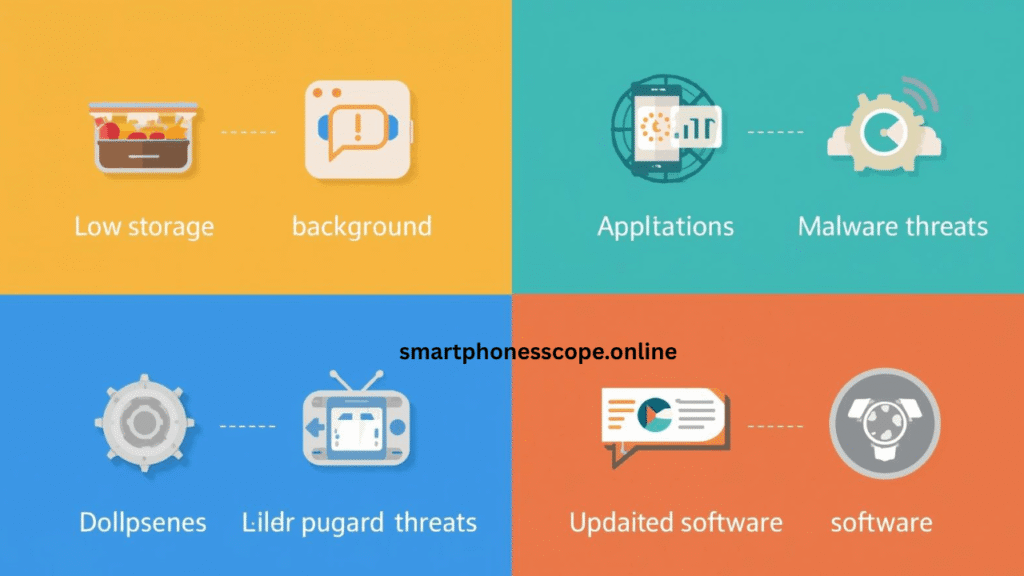
How to fix slow Android phone in 2026 – complete speed guide
Why Is Your Android Phone Slow?
Before fixing the problem, understanding the root cause is essential. A slow Android phone is almost never caused by just one issue it is usually a combination of several factors building up over time.
The most emotionally frustrating part is that your phone was perfectly fast when you first bought it. That speed did not disappear randomly. Here is exactly what happened:
Root Cause
How It Slows Your Phone
Low Storage Space
Android needs 20–30% free space to function smoothly
Too Many Background Apps
Constantly consuming RAM and CPU cycles
Outdated Software
Old Android versions have unpatched performance bugs
Accumulated Cache Data
Gigabytes of junk files clogging app performance
Bloatware Apps
Pre-installed apps running silently in background
Malware / Adware
Secretly using your processor and internet
Weak Processor
Budget chips struggle after 2–3 years of heavy use
Fragmented Storage
Files scattered inefficiently across storage
Common reasons why Android phone gets slow in 2026
Quick Fixes to Speed Up Your Android Phone
Fix 1 – Restart Your Phone (Do This First)
This sounds too simple to be effective but it genuinely works. Restarting your Android phone clears temporary RAM, kills background processes, and fixes dozens of small software bugs that accumulate during normal use.
How to do it:
Hold the power button for 3 seconds
Tap “Restart” (not just power off)
Wait for full reboot — about 60 seconds
Expected result: Noticeably smoother performance immediately after restart, especially if you have not restarted in several days.
Pro Tip: Make restarting your phone a weekly habit — every Sunday night. This single habit alone prevents significant performance degradation over time.
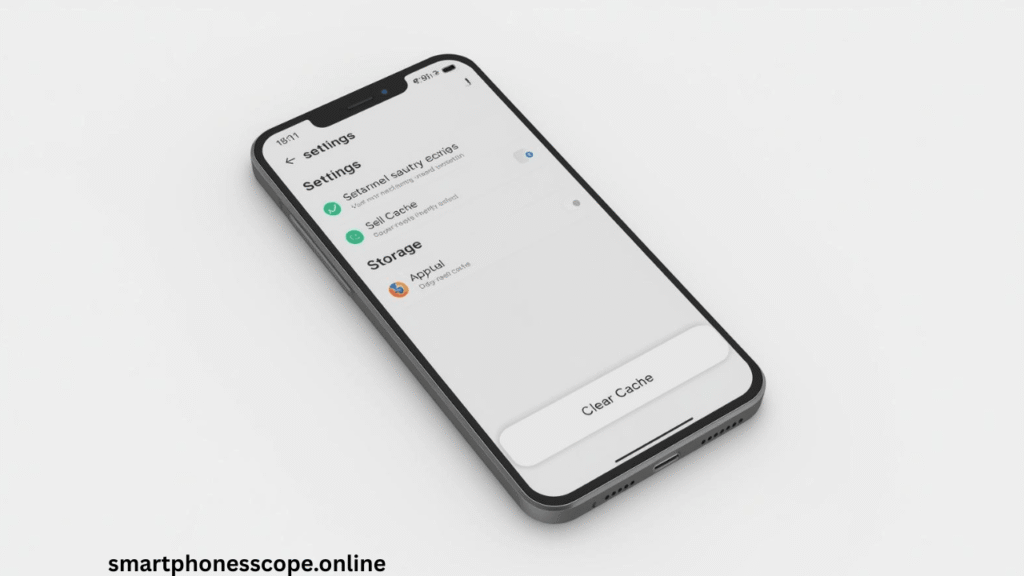
Fix 2 – Clear Cache Data
Every app on your phone stores temporary files called cache. Over months of use, these cache files accumulate into gigabytes of pure junk that slows down app loading times, wastes storage, and causes random freezes.
How to clear cache on Android (2026):
Method 1 — Clear individual app cache:
Go to Settings → Apps → See All Apps
Select any app (start with Chrome, Facebook, YouTube)
Safe to do: Clearing cache never deletes your personal data, photos, passwords, or app settings. It only removes temporary junk files.
How to clear cache on Android phone to fix slow performance
Fix 3 – Delete Unused Apps
Every app installed on your phone even if you never open it consumes storage space, occasionally runs background processes, and receives automatic updates that use data and processing power.
Action steps:
Go to Settings → Apps
Sort by “Last Used”
Uninstall every app you have not opened in 30+ days
This is the most misunderstood cause of slow Android phones. When your storage drops below 20% free space, Android’s performance degrades dramatically. The operating system needs free space to create temporary files, manage memory, and run smoothly.
How to free up storage fast:
Step 1 — Move photos and videos to cloud:
Enable Google Photos backup
Once backed up, delete local copies
This alone can free 5–20GB on most phones
Step 2 — Clean your Downloads folder:
Open Files app → Downloads
Delete everything older than 30 days
Most downloaded files are never opened again
Step 3 — Remove duplicate files:
Use Google Files (free) to find and delete duplicates
Check for duplicate photos especially — these accumulate fast
Target: Always keep at least 20–30% of your total storage free for optimal Android performance. This is the single most impactful thing most users can do.
Disable or Uninstall Bloatware
What Is Bloatware and Why It Hurts Performance
Bloatware refers to the pre-installed apps that phone manufacturers and carriers add to your device — apps you never asked for and probably never use. On budget Android phones especially, bloatware can consume 1–3GB of RAM running silently in the background.
Common bloatware examples:
Manufacturer app stores (duplicate of Google Play)
Pre-installed games you never play
Carrier apps and promotional software
Duplicate calendar, email, and browser apps
How to disable bloatware (without root):
Go to Settings → Apps → See All Apps
Find the bloatware app
Tap Disable (if uninstall is greyed out)
Tap Force Stop first, then Disable
Disabling bloatware does not delete it permanently but prevents it from running which is all you need to reclaim RAM and speed.
Update Software & Apps
Why Updates Actually Speed Up Your Phone
Many users avoid updates fearing they will slow down older phones. In 2026, this fear is largely outdated. Android updates now include specific performance optimizations for older hardware, bug fixes that resolve lag issues, and security patches that remove malware vulnerabilities.
How to update Android:
Settings → System → Software Update → Check for Updates
How to update all apps:
Open Google Play Store
Tap your profile photo → Manage Apps & Device
Tap Update All
Best Practice: Enable automatic app updates on WiFi only. This keeps all apps optimized without using your mobile data.
Reduce Animations – The Hidden Speed Trick
This Single Setting Makes Your Phone Feel Twice as Fast
This is the most powerful hidden trick that 90% of Android users never discover. Android plays subtle animations every time you open an app, switch between screens, or navigate menus. Reducing these animations makes your phone feel dramatically faster — even if the actual processing speed is unchanged.
Step-by-step (enable Developer Options first):
Step 1 — Enable Developer Options:
Go to Settings → About Phone → Software Information
Tap Build Number exactly 7 times rapidly
Enter your PIN when prompted
“You are now a developer!” message appears
Step 2 — Reduce animations:
Go to Settings → Developer Options
Find these three settings:
Window Animation Scale → set to 0.5x
Transition Animation Scale → set to 0.5x
Animator Duration Scale → set to 0.5x
Expected result: Your phone will feel noticeably snappier within seconds of making these changes. Apps appear to open faster, menus respond quicker, and the overall experience feels significantly more responsive.
Limit Background Apps
Background apps are silent performance killers. Every app running in the background consumes RAM and CPU cycles — even when you are not using them. On phones with 4GB RAM or less, this is a serious problem.
How to limit background apps:
Method 1 — Manual:
Tap the Recent Apps button
Swipe away all apps you are not actively using
Do this several times per day
Method 2 — Developer Options:
Settings → Developer Options → Background Process Limit
Set to “At most 4 processes” for 4GB RAM phones
Set to “Standard limit” for 8GB+ RAM phones
Method 3 — Battery Optimization:
Settings → Battery → Battery Optimization
Set non-essential apps to “Optimized” or “Restricted”
Switch to Lite Apps
Smart App Choices That Dramatically Reduce RAM Usage
Lite apps are stripped-down versions of popular apps designed for low-end devices and slow connections. In 2026, they have become surprisingly capable — and they use a fraction of the RAM and storage of their full versions.
Full App
RAM Used
Lite Version
RAM Used
Savings
Facebook
~400MB
Facebook Lite
~50MB
87% less
Messenger
~300MB
Messenger Lite
~40MB
87% less
YouTube
~250MB
YouTube Go
~60MB
76% less
Twitter/X
~200MB
Twitter Lite
~30MB
85% less
Switching to Lite apps on a 4GB RAM phone can free up 600–900MB of RAM — which translates directly into smoother, faster performance across your entire device.
Scan for Malware & Viruses 🔐
Malware is a surprisingly common cause of slow Android phones — especially on devices that install apps from outside the Google Play Store. Malicious apps run silently in the background, consuming CPU power, sending data, and draining battery.
Signs your phone may have malware:
Battery drains unusually fast
Phone gets hot without heavy use
Strange apps you did not install appear
Excessive data usage with normal habits
Ads appearing outside of apps
How to scan and remove:
Install Malwarebytes for Android (free, trusted)
Run a full scan
Remove any flagged apps immediately
Go to Settings → Apps and remove any app you do not recognize
Prevention: Only install apps from the official Google Play Store. Avoid APK files from unknown websites — they are the primary source of Android malware.
Factory Reset – The Nuclear Option
When Everything Else Fails
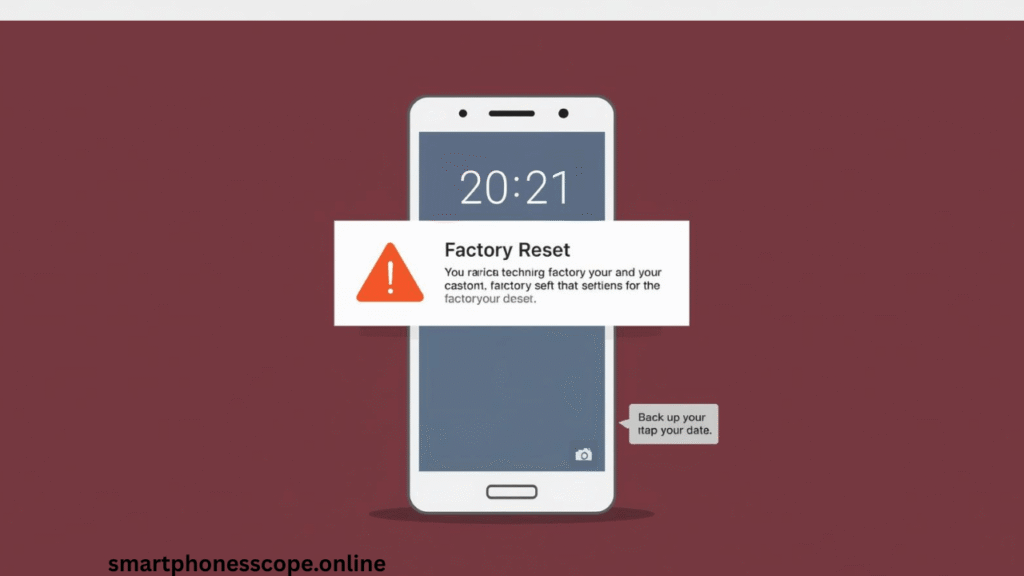
A factory reset wipes your phone completely and restores it to its original out-of-box state. This is the most drastic solution but it is also the most effective one when other methods have not resolved the slowness.
Before factory reset — backup everything:
Photos → Google Photos
Contacts → Google Account sync
WhatsApp → In-app backup to Google Drive
App data → Google One backup
How to factory reset:
Settings → General Management → Reset → Factory Data Reset
Confirm and wait 10–15 minutes
Set up your phone fresh
Expected result: Your phone will perform exactly as it did on day one — because it essentially IS day one again.
Android factory reset steps to fix extremely slow phone performance
When Should You Upgrade Your Phone?
Sometimes the honest answer is that your phone is simply too old to be saved. Here are the clear signs it is time to upgrade:
Sign
What It Means
Phone is 4+ years old
Hardware is genuinely outdated
RAM is 3GB or less
Cannot handle modern apps efficiently
No more software updates
Security risks + no performance improvements
Battery holds less than 3 hours
Battery degradation is irreversible
Overheats constantly
Processor is failing under modern workloads
If your phone checks 3 or more of these boxes, upgrading is genuinely the smarter financial decision compared to continuing to struggle with a device past its useful life.
Pro Tips to Keep Your Android Phone Fast Forever
These maintenance habits take less than 10 minutes per week but prevent performance degradation entirely:
Weekly habits:
Restart your phone every Sunday
Clear cache of top 5 most-used apps
Check storage — keep 25%+ free always
Monthly habits:
Uninstall apps you have not used in 30 days
Run a malware scan
Update all apps and Android software
Review which apps have background activity enabled
Always avoid:
Installing apps from outside Google Play Store
Ignoring storage warnings
Skipping Android software updates
Using your phone while charging heavily (causes heat damage)
FAQS
Q1: Why has my Android phone become so slow? Full storage, too many background apps, and accumulated cache data are the three most common reasons. Start with Steps 2, 3, and 4 in this guide.
Q2: Is it safe to clear cache? Yes, it is completely safe. Clearing cache does not delete your personal data, photos, or passwords — it only removes temporary junk files.
Q3: Does a factory reset improve speed? Yes a factory reset restores your phone to day-one performance. However, make sure to take a backup first.
Q4: How much RAM is needed for smooth performance? In 2026, at least 6GB RAM is recommended for comfortable Android use. For heavy multitasking, 8GB or more is ideal.
Q5: Is reducing animation scale safe? Yes, it is safe. It only changes visual speed and does not affect any system functions. You can revert it anytime
Conclusion
A slow Android phone is not a death sentence — it is a maintenance problem with clear, proven solutions. Starting from the simplest fixes like restarting and clearing cache, all the way to the nuclear option of factory reset, this guide gives you every tool you need to restore your phone’s performance in 2026.
Quick action plan:
Today: Restart phone + clear cache + free up storage
This week: Disable bloatware + reduce animations + switch to Lite apps
This month: Update software + scan for malware + review background apps
If nothing works — and your phone is 4+ years old with less than 4GB RAM — upgrading to a budget 2026 Android device is genuinely the smartest move. Modern budget phones offer performance that flagship phones of 4 years ago could not match.
Your time and frustration are worth more than struggling with a slow phone. Fix it today — you deserve a fast phone.
Hi: Anum is a technology content writer and smartphone research enthusiast at Smartphonesscope.online. She specializes in smartphone reviews, battery performance analysis, camera comparisons, and mobile accessories guides. Her content is based on real-world research, user feedback, and brand specifications to ensure accuracy and trust. Anum focuses on helping readers make informed smartphone buying decisions, especially for the USA market, by providing clear, unbiased, and easy-to-understand technology information.